
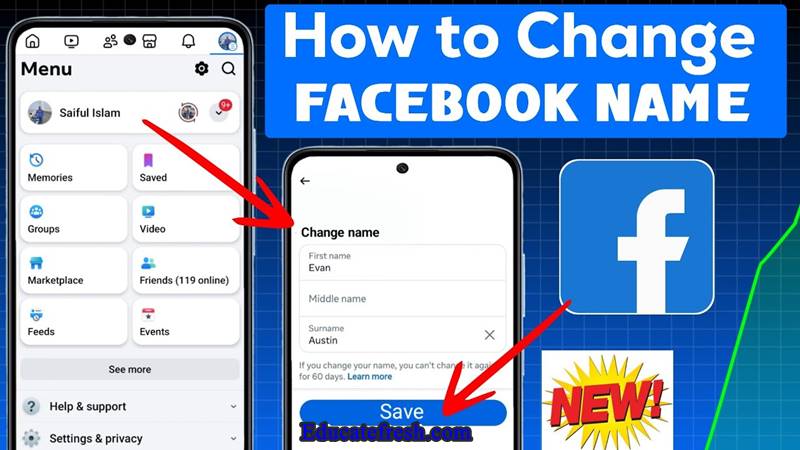
Your name on Facebook is more than just a label — it represents your identity, brand, and first impression online. Many users search daily for how to change your name on Facebook step by step because they want to correct a spelling error, update their surname, rebrand professionally, or simply use the name people know them by in real life.
However, Facebook doesn’t always make this process straightforward. Many users complain that:
- Facebook rejects their name change
- They don’t see the edit option
- They changed their name recently and are now stuck
- Facebook says its name violates policy
If you’ve ever asked, “Why can’t I change my name on Facebook?”, you’re not alone.
Understanding Facebook’s Name Policy
Before you try to change your name, you need to understand Facebook’s name policy. Facebook wants users to use names that reflect how they are known in real life.
What Facebook Allows
Your Facebook name should be:
- Your real name or a variation of it
- The name friends call you in everyday life
- A professional name (if commonly used)
- A maiden or married name
Examples Facebook usually accepts:
- Miracle Uchenna
- Miracle John-Uchenna
- Rev. Godwin Edochie (if commonly used)
What Facebook Does NOT Allow
Facebook will reject names that include:
- Nicknames with symbols (e.g. Mir@cle)
- Titles like King, Queen, Dr., Sir (unless verified)
- Words instead of names (Blessed Child, Money King)
- All capital letters
- Emojis or special characters
- Business names on personal profiles
Important: If your name violates these rules, Facebook may block you from changing your name for a long time.
How to Change Your Name on Facebook Step by Step (Using Phone)
This is the most common method, especially for users in Nigeria. Simply follow the steps given below.
1. Open the Facebook App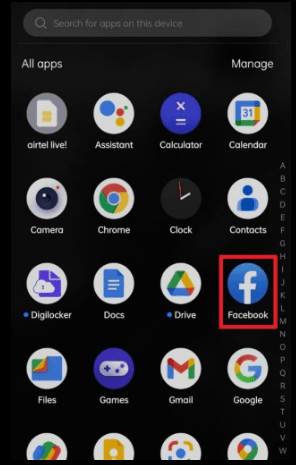
- Launch the Facebook app on your Android or iPhone
- Make sure you are logged into the correct account
2. Go to Menu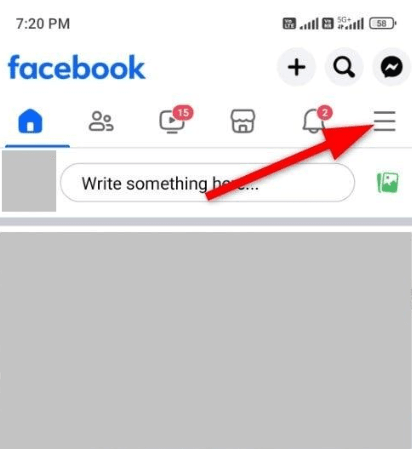
- Tap the three horizontal lines (☰) at the top right (Android) or bottom right (iPhone)
3. Open Settings & Privacy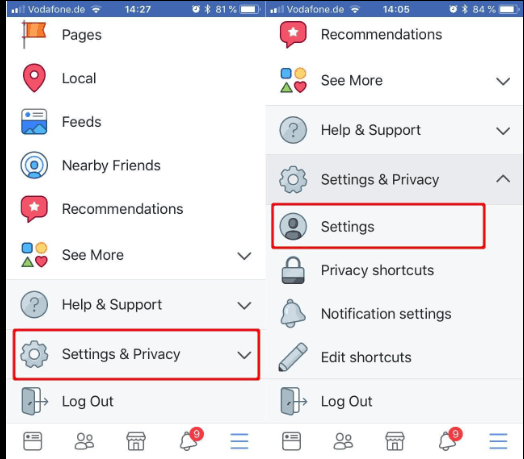
- Scroll down and tap Settings & Privacy
- Tap Settings
4. Go to Personal Details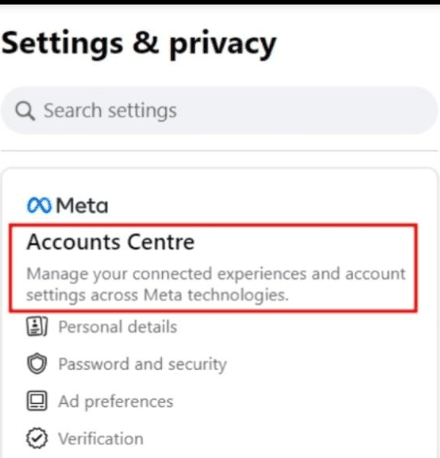
- Under Accounts Center, tap Personal Details
- Tap Name
5. Edit Your Name
You’ll see three fields:
- First name
- Middle name (optional)
- Last name
Enter your new name carefully.
6: Review Change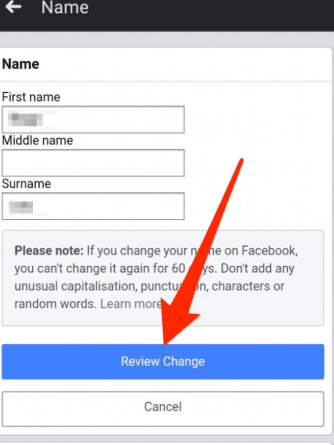
- Tap Review Change
- Choose how your name will appear
- Enter your Facebook password
- Tap Save Changes
Done! Your new name will appear immediately or after review.
How to Change Your Name Using a Computer
If you prefer a laptop or desktop, follow these steps:
1: Visit Facebook
- Go to Facebook and log in.
2: Open Settings
- Click your profile picture (top right)
- Click Settings & Privacy
- Click Settings
3: Personal Information
- Click Accounts Center
- Click Personal Details
- Click Name
4: Enter New Name
- Type your new name correctly.
5: Confirm
- Click Review Change
- Enter your password
- Click Save Changes
READ THIS: Best Free Facebook Video Downloaders & How to Use Them
How Often Can You Change Your Facebook Name?
Facebook allows you to change your name once every 60 days.
Important Rules:
- You cannot change your name again for 60 days
- If you change it too many times, Facebook may block future changes
- Fake or misleading names increase the risk of permanent restriction
Tip: Be 100% sure before saving your new name.
Why Facebook Won’t Let You Change Your Name (Common Reasons)
- You Changed It Recently
If it hasn’t been 60 days since your last change, Facebook will block you.
- Your Name Breaks Facebook Rules
Using symbols, emojis, titles, or fake names triggers rejection.
- You’re Changing It Too Often
Frequent name changes look suspicious to Facebook’s system.
- Account Is Restricted
If your account has:
- Policy violations
- Suspicious activity
- Identity issues
- Facebook may disable name editing.
Facebook may disable name editing.
- Poor Internet Connection
Sometimes, the option doesn’t load properly.
What to Do If Facebook Rejects Your Name Change
If Facebook refuses your request, don’t panic.
Solution 1: Use a Simpler Version
Remove:
- Titles
- Emojis
- Extra words
Use plain first and last name.
Solution 2: Wait 60 Days
Sometimes waiting is the only solution.
Solution 3: Submit ID Verification
If Facebook asks for identity confirmation:
- Upload a government-issued ID
- Ensure name matches the ID
- Follow on-screen instructions
Examples of accepted IDs:
- National ID (NIN slip or card)
- International Passport
- Driver’s License
Solution 4: Use the Facebook Name Appeal Form
Facebook may provide a form to explain your name change.
Can You Use a Nickname on Facebook?
Yes, but carefully.
Facebook allows nicknames only if:
- It looks like a real name
- Friends recognize you by it
Better approach:
- Use real name as main name
- Add nickname in “Other Names” section
How to Add a Nickname Without Changing Your Main Name
Steps:
- Go to your profile
- Click About
- Click Details About You
- Scroll to Other Names
- Add nickname
- Set visibility to Public or Friends
This keeps you compliant and searchable.
How to Change Your Facebook Name After Marriage
Many people change their surname after marriage.
Best format:
- First Name + Married Surname
- Or First Name + Maiden-Married (Hyphenated)
Example:
- Miracle Uchenna-Adoma
Facebook usually approves this easily.
Changing Facebook Name for Branding or Ministry
If you are:
- A pastor
- A content creator
- A public speaker
Use:
- Your real name
- A commonly known variation
Avoid turning personal profiles into business names. Use a Facebook Page instead.
Difference Between Facebook Profile Name and Page Name
| Feature | Profile | Page |
|---|---|---|
| Purpose | Personal identity | Business/Brand |
| Name Rules | Strict | Flexible |
| Change Limit | 60 days | Anytime |
| Emojis | Not allowed | Allowed |
Frequently Asked Questions (FAQs)
How long does Facebook take to approve a name change?
When you submit a request to change your name on Facebook, approval time depends on a few factors.
In most cases, your Facebook name change is approved instantly, especially if:
- Your new name follows Facebook’s naming rules
- You haven’t changed your name recently
- There are no suspicious activities on your account
However, if Facebook needs to review your request, it can take 24 to 72 hours. During this time, your name may appear as “pending.”
In rare situations, it may take longer if:
- Your name looks unusual or doesn’t match typical formats
- Facebook requests identity verification
- Your account has been flagged for unusual activity
Tip: To avoid delays, always use a real, simple name that matches your identity.
Can I change my Facebook name without ID?
Yes, you can change your Facebook name without submitting an ID, but only under certain conditions.
Facebook will approve your request without ID if:
- Your name follows the Facebook name policy
- It looks like a real name
- You haven’t changed your name within the last 60 days
- Your account has no security issues
However, Facebook may ask for ID if:
- Your name appears fake or suspicious
- You’re making frequent changes
- Your account is flagged for verification
Best practice: Use your real name or a commonly recognized variation to avoid being asked for ID.
Why does Facebook keep rejecting my name?
If you’re asking “why Facebook rejected my name”, there are several common reasons behind it.
Facebook may reject your name if:
- It contains symbols or special characters (e.g., Mir@cle)
- It includes titles like “Chief,” “King,” or “Dr.”
- It looks like a phrase instead of a real name (e.g., Money King)
- It is written in all capital letters
- You recently changed your name (within 60 days)
Another reason could be that your account has:
- Security restrictions
- Suspicious activity
- Previous policy violations
Solution: To successfully change your Facebook name, simplify it to a normal format: First Name + Last Name. Avoid adding extra words, decorations, or titles.
Can I use initials on Facebook?
Yes, Facebook allows the use of initials, but they must look natural and realistic.
Examples of acceptable formats:
- M. Uchenna
- Miracle J. Uchenna
However, avoid:
- Too many initials (e.g., M.U.C.X.Z)
- Random abbreviations that don’t look like real names
Facebook’s system is designed to detect names that look unnatural or fake, so keep it simple. If you’re unsure, use your full name for better approval chances.
Will my friends be notified when I change my Facebook name?
No, Facebook does not send an official notification when you change your name.
However, your friends may still notice because:
- Your new name appears on your profile immediately
- It shows in comments, posts, and messages
- People may see it when they search for you
So while there’s no alert sent out, the change is still visible.
If you’re rebranding or making a major change, you can create a post to inform your friends and avoid confusion.
My Personal Experience Changing My Facebook Name
When I first tried to change my name on Facebook, I honestly thought it would be very simple. I just wanted to update my name to something more professional and easier for people to recognize.
But things didn’t go as planned. My first attempt was rejected almost immediately. At that time, I didn’t understand the Facebook name policy, so I added extra words to my name, thinking it would make it look unique and branded. Instead, Facebook flagged it as invalid.
I remember asking myself, “why Facebook rejected my name?” because everything looked fine to me.
After that rejection, I decided to do things properly. I removed the extra words, avoided titles, and used a clean format — just my real first name and last name.
The difference was clear. When I tried again, the Facebook name change was approved instantly without any issues.
That experience taught me a very important lesson: Facebook is strict, but it is also predictable.
Once you understand the rules and follow the correct steps, changing your name becomes very easy. If you’re currently struggling with how to change your name on Facebook step by step, just know this:
- Keep your name simple
- Use a real-life format
- Avoid trying to “decorate” your name
- Follow the 60-day rule
Do these, and you won’t face rejection again.
Conclusion
Now you understand how to change your name on Facebook step by step without stress. By following the correct process and respecting the Facebook name policy, you can avoid rejection and update your profile successfully.
If you’ve ever struggled with a Facebook name change, this guide should make everything easier. Take action now and update your name correctly.
If this helped you, share it with others who are asking why Facebook rejected my name.