
In this article, you’ll learn how to use Google Docs for Work, whether you are a business owner, freelancer, student, digital marketer, or you need tools that help you create, edit, and share documents easily. All you have to do is read this article carefully, and you’ll be very much good to go.
Create documents from anywhere
Collaborate with team members in real time
Share files instantly
Store documents safely online
Access files from your phone or laptop
From writing proposals and reports to creating marketing content and contracts, Google Docs is one of the most powerful tools you can use to grow your business or career.
In this complete guide, you will learn everything you need to use Google Docs for work professionally, even if you are a beginner.
What is Google Docs and Why You Should Use It for Work
What is Google Docs?
Google Docs is a web-based document editor provided by Google as part of Google Workspace. It works directly in your browser or mobile app without installing software.
Key Benefits for Work
- Free and Easy to Use: You don’t need to buy Microsoft Word. Google Docs is completely free with a Gmail account.
- Work from Anywhere: Whether you’re in Asaba, Benin City, or anywhere in Nigeria, you can access your files from your phone or laptop.
- Real-Time Collaboration: Multiple people can work on the same document at the same time.
- Auto Save: Your work is saved automatically. No more losing documents due to power failure.
- Cloud Storage: All your documents are stored in Google Drive, making them easy to find and organize.
READ THIS: How to Write a CV for International Jobs from Nigeria
How to Get Started with Google Docs
Step 1: Create a Google Account
If you don’t have one:
Go to www.gmail.com
Click “Create Account”
Fill in your details
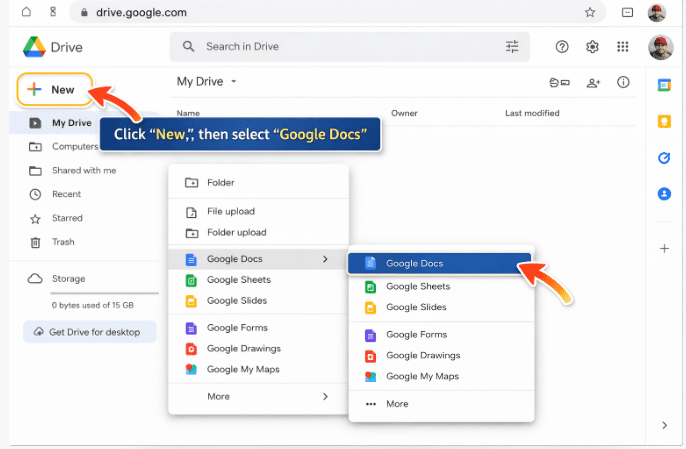
Step 2: Open Google Docs
You can access Google Docs in two ways:
Go to docs.google.com
Or open Google Drive and click New → Google Docs
Step 3: Create a New Document
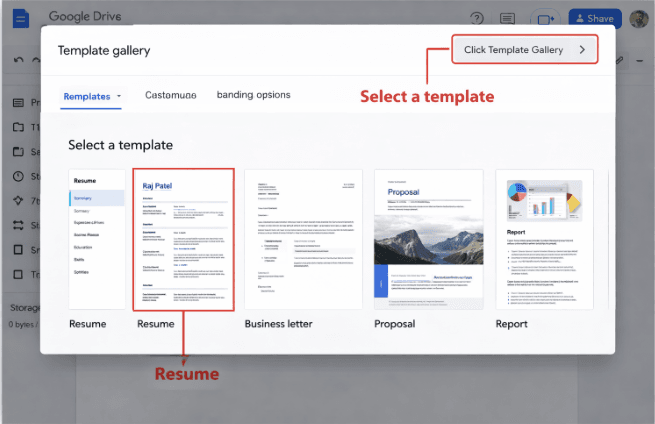
Click on Blank Document Or choose from a template like:
Resume
Business letter
Proposal
Report
Understanding the Google Docs Interface
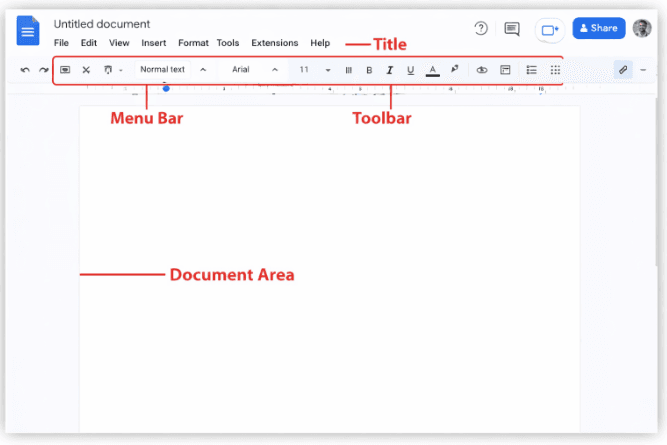
When you open a document, you will see:
- Title Area: Where you name your document.
- Menu Bar: Contains File, Edit, View, Insert, Format, Tools, Extensions, Help.
- Toolbar: Used for quick formatting like bold, font size, alignment, etc.
- Document Area: Where you type your content.
Basic Formatting for Professional Documents
To use Google Docs for work, your documents must look clean and professional.
- Font and Text Styling
Use professional fonts like Arial, Calibri, or Times New Roman
Font size for body: 11–12
Headings: 14–18
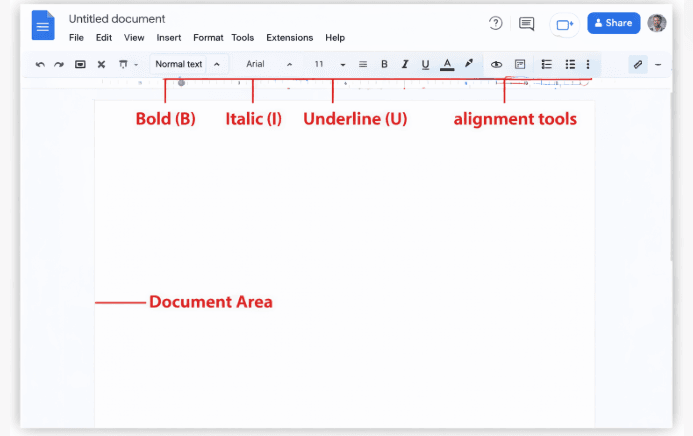
- Important Formatting Tools
Bold for headings
Italic for emphasis
Underline for important text
Bullet points for lists
- Alignment
- Left align for most documents
Center for titles
Justify for reports
Using Google Docs Templates for Work
Google Docs provides ready-made templates to save time.
Popular Work Templates
Resume templates
Business proposals
Meeting notes
Project plans
Reports
How to Use Templates
Open Google Docs
Click Template Gallery
Choose a template
Edit with your information
Writing Professional Documents with Google Docs
Common Work Documents You Can Create
CV/Resume
Cover letters
Business proposals
Reports
Invoices
Contracts
Social media content drafts
Examples
You can use Google Docs to:
Write blog posts
Draft marketing copies
Collaboration – Working with Others in Real Time
This is one of Google Docs’ strongest features.
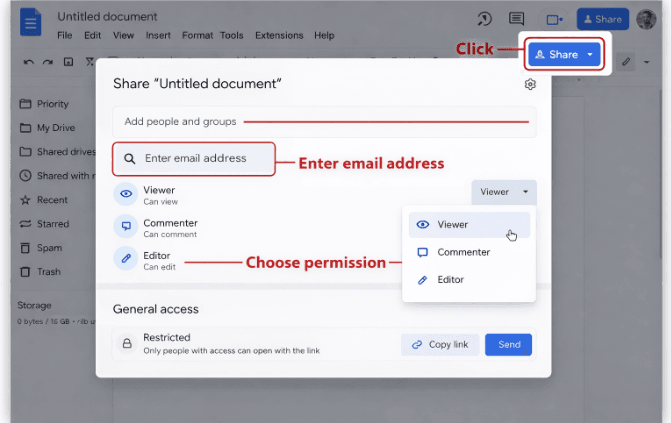
How to Share a Document
Click Share
Enter email address
Choose permission:
Viewer
Commenter
Editor
Use Cases
Work with clients on proposals
Collaborate with a team on projects
Get feedback on documents
Comments and Suggestions
Highlight text
Click Comment
Tag team members using @name
Using Google Docs for Remote Work and Freelancing
If you want to make money online or work remotely, Google Docs is essential.
Freelancers use it for:
Writing client content
Sending proposals
Editing documents
Team communication
Digital marketers use it for:
Content calendars
Blog writing
Email campaigns
Advanced Features of Google Docs
1. Voice Typing
Go to: Tools → Voice Typing
Speak and Google Docs will type for you.
2. Add-ons and Extensions
You can install tools like:
Grammarly
PDF tools
Citation managers
3. Table Creation
Insert → Table
Useful for:
Price lists
Reports
Data tracking
4. Page Setup
You can set:
Margins
Page size
Orientation
Using Google Docs Offline
Even without internet:
Install Google Docs offline extension
Enable offline mode in Google Drive
Work without internet
Sync later
Converting and Downloading Files
Google Docs allows you to download your document as:
PDF
Microsoft Word
Plain text
HTML
To download:
File → Download → Choose format
Using Google Docs on Mobile
Download the Google Docs app from:
Play Store
App Store
You can:
Edit documents
Share files
Comment
Work on the go
Google Docs for Business Owners
As a business owner like you managing Miratech Group, you can use Google Docs to:
Draft business plans
Create marketing scripts
Manage staff communication
Track orders and operations
Write client contracts
Productivity Tips for Using Google Docs
1. Use Keyboard Shortcuts
Example:
Ctrl + B (Bold)
Ctrl + C (Copy)
Ctrl + V (Paste)
2. Use Headings for Structure
Use:
Heading 1
Heading 2
Heading 3
3. Use Document Outline
View → Show Outline
4. Use Version History
File → Version History
This allows you to restore previous versions.
Security and Privacy in Google Docs
Google Docs is secure because:
Files are stored in your Google account
You control who has access
You can remove access anytime
My Personal Experience Using Google Docs for Work
As someone building digital businesses and content platforms, Google Docs has been one of the most important tools in my journey.
When I started working on Educatefresh blog content and other platforms, Google Docs made it easy to:
Write from my phone and laptop
Share documents with clients
Edit content quickly
Store everything in one place
Instead of worrying about losing files or carrying flash drives, everything stays online and accessible anytime. It has helped me stay organized, professional, and productive even with limited resources.
Common Mistakes to Avoid
When using Google Docs, below are the common mistakes you must avoid.
- Using too many fonts
- Not organizing documents in folders
- Sharing documents with wrong permissions
- Forgetting to name documents properly
- Writing without structure
How to Organize Your Work Using Google Drive + Docs
Create folders like:
Clients
Marketing
Finance
Personal documents
Business plans
This keeps your work organized and easy to find.
Google Docs vs Microsoft Word
| Feature | Google Docs | Microsoft Word |
|---|---|---|
| Cost | Free | Paid |
| Cloud storage | Yes | Limited |
| Collaboration | Real-time | Limited |
| Offline access | Yes | Yes |
| Ease of use | Easy | Moderate |
Google Docs is best for collaboration and online work.
Final Tips for Mastering Google Docs for Work
Practice daily
Use templates
Collaborate with others
Learn shortcuts
Organize your files
Frequently Asked Questions (FAQs) – Google Docs for Work
1. Is Google Docs completely free to use for work?
Yes, Google Docs is 100% free for individual users with a Gmail account. You can create, edit, and share unlimited documents without paying anything.
However, for businesses that need:
Custom email domain (e.g. yourname@company.com)
Advanced security
Team storage
You can upgrade to Google Workspace (paid plan).
For small businesses, freelancers, and beginners, the free version is more than enough to start working professionally.
2. Can I use Google Docs offline without internet?
Yes, Google Docs can work offline, which is very useful in Nigeria where internet may be unstable.
To enable offline mode:
Open Google Drive
Click Settings
Enable Offline Mode
Install Google Docs offline extension on Chrome
After that:
You can write and edit documents without internet
Once your internet returns, your files will sync automatically
3. Is Google Docs better than Microsoft Word for work?
It depends on your needs.
Google Docs is better for:
Collaboration
Remote work
Sharing documents quickly
Working from multiple devices
Microsoft Word is better for:
Complex formatting
Advanced document layouts
Offline-heavy users
For most modern online jobs, freelancing, and business use, Google Docs is the best choice.
4. How do I share a Google Docs document with someone?
Follow these steps:
Open your document
Click the Share button (top right)
Enter the person’s email address
Choose permission:
Viewer (can only read)
Commenter (can comment)
Editor (can edit)
You can also:
Copy link and send via WhatsApp or email
5. Can multiple people edit a document at the same time?
Yes! This is one of the biggest advantages of Google Docs.
Multiple users can:
Edit the document simultaneously
Leave comments
Suggest changes
This is very useful for:
Teams
Students
Business partners
Client work
6. How do I create a professional CV using Google Docs?
You can create a CV in minutes using templates:
Steps:
Open Google Docs
Click Template Gallery
Select a Resume template
Replace with your personal details
Download as PDF
This is perfect for applying for:
Jobs abroad
Remote jobs
Local employment
Conclusion
Google Docs is more than just a typing tool. It is a complete productivity and collaboration platform that can help you work smarter, Grow your business, Build your digital career, and collaborate with people worldwide
Whether you are a student, entrepreneur, digital marketer, or business owner in Nigeria, learning how to use Google Docs effectively will give you a powerful advantage in today’s digital economy.
I believe this how to use Google Docs for work article was helpful. Feel free to use the comment box below for any questions relating to this article. Also, share this article on your social media accounts so that others can know about it.