
How to find my forgotten password – In this article, I’m going to give you the step-by-step guide I used to find my forgotten password. If you’ve lost your password and wish to get it back, then trust me when I say you should read this article carefully, and you’ll be very much good to go.
Forgetting a password is one of the most common digital problems today. With so many apps, websites, banking platforms, and devices requiring login details, it’s easy to mix things up. The good news is this: you can recover or reset almost any forgotten password if you know where to look.
This guide will walk you through where to find forgotten passwords, step-by-step instructions for recovery, and extra tips to help you stay safe online. Whether it’s your email, Facebook, Wi-Fi, phone, or bank app, this article covers everything simply.
Why We Forget Passwords
Before jumping into solutions, let’s understand why it happens. Passwords get forgotten most time because:
- We use different passwords for different platforms
- We switch phones without backing up saved passwords
- We reset passwords too often
- We write them down in places we can’t remember
- Our browser saves passwords automatically, so we forget them
- Too many apps and accounts use email + phone verification
Understanding this helps you avoid future password problems.
READ THIS: How To Create A Facebook Account From Your Mobile Device
How to Find My Forgotten Passwords
These passwords are currently saved in your device, and you can find them using the steps below.
A. Finding Saved Passwords on Android (Chrome)
Most Android phones save passwords through Google Chrome. To find them, simply follow the steps below:
1. Open your Google Chrome browser
2. Tap the three dots at the top right side
3. Select “Settings.”
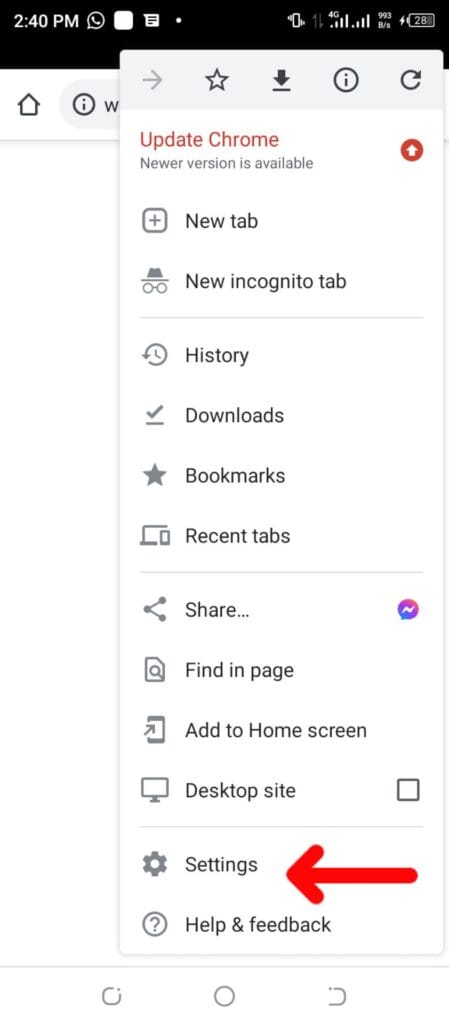
4. Tap Password Manager or passwords
5. You’ll see all saved passwords
6. Select the website/app
7. Tap the eye icon to reveal the password
8. Authenticate with your fingerprint or phone pattern
This works for Facebook, Gmail, Instagram, banking apps, and more—if they were saved.
B. Finding Saved Passwords on iPhone (iCloud Keychain)
1. Go to Settings
2. Scroll to Passwords
3. Authenticate with Face ID/Touch ID
4. View all saved passwords
5. Tap any website/app to reveal it
Your iPhone stores passwords automatically if Keychain is turned on.
C. Viewing Saved Passwords on Your Computer Browser
Google Chrome
- Open Chrome
- Click the 3 dots
- Select Settings
- Click Autofill → Password Manager
- View passwords by clicking the eye icon
Microsoft Edge
1. Open Edge
2. Go to Settings
3. Select Profiles
4. Click Passwords
Mozilla Firefox
1. Open Firefox
2. Go to Settings
3. Click Privacy & Security
4. Scroll to Saved Logins
How to Recover a Forgotten Password When You Can’t Find It
If your password wasn’t saved, you still have options. All platforms usually offer password reset features.
A. Resetting Your Email Password (Gmail, Yahoo, Outlook)
- Go to the Gmail login page
- Enter your email
- Tap Forgot password?
- Choose SMS, backup email, or security question
- Verify your identity
- Create a new password
Yahoo Mail / Outlook
Same steps:
- Click Forgot password
- Choose your recovery method
- Reset your password
Your email is the gateway to most of your accounts. Make sure it’s secured.
How to Recover Your Social Media Passwords
A. Facebook Password Recovery
- Open Facebook
- Click Forgot Password?
- Enter your email or phone number
- Choose where to receive the code
- Enter the code
- Create a new password
What if you no longer have access to the phone number?
- Use your email
- Use your username
- Use the “No longer have access to these?” option
- Facebook will allow identity confirmation
B. Instagram Password Recovery
- Open Instagram
- Tap Forgot Password?
- Choose email, username, or phone
- Follow instructions
- Reset your password
C. WhatsApp Password Recovery (for Two-Step Verification)
If you forget your WhatsApp 6-digit PIN:
- Tap Forgot PIN
- WhatsApp will send a reset link to your email (if you added one)
If you didn’t add an email, you will need to wait 7 days, and WhatsApp will allow access again.
Conclusion
Forgetting a password doesn’t mean losing your account forever. With modern devices and apps, most passwords are saved automatically—either on your phone, computer, or cloud. And even if they’re not saved, you can almost always reset them through email, phone verification, or security questions.
Just follow the step-by-step methods above to find my forgotten password, and you’ll regain access to your account.
And moving forward, use a password manager to avoid the stress of forgotten passwords again.
Meanwhile, if you have any questions on this method to Find My Forgotten Password: A Complete Step-by-Step Guide for 2026, feel free to use the comment box below.