
How to Enable Two-Factor Authentication WhatsApp Guide – WhatsApp is one of the most popular messaging apps in the world, used by over 2 billion people for texting, voice and video calls, and sharing files. With its widespread use, security becomes a top priority. One of the most effective ways to protect your WhatsApp account is to enable Two-Factor Authentication (2FA).
Two-Factor Authentication (2FA), also known as Two-Step Verification on WhatsApp, is a powerful security feature designed to protect your account from unauthorized access. With the growing number of online scams, phishing attacks, and account hijacking attempts, enabling 2FA on WhatsApp has become more important than ever for users who value privacy and data security.
Normally, WhatsApp uses your phone number and a one-time SMS verification code to log you in. However, if someone gains access to this code—through SIM swapping, phishing, or social engineering—they could take over your account. Two-Factor Authentication adds an extra layer of protection by requiring a 6-digit PIN that only you know. Even if a hacker gets your verification code, they won’t be able to access your WhatsApp account without this PIN.
READ THIS: How To Recover WhatsApp Account – A Complete Guide
Two-Factor Authentication adds an extra layer of security to your account. Even if someone steals your verification code, they won’t be able to access your account without the additional PIN you set up. This guide provides a detailed, step-by-step approach to enabling 2FA on WhatsApp, complete with screenshots, tips, and FAQs.
Benefits of Enabling 2FA on WhatsApp
- Prevents Unauthorized Access
2FA adds an extra security layer by requiring a 6-digit PIN in addition to your phone number. Even if someone gets your SMS verification code, they still cannot access your WhatsApp account without your PIN. - Protects Against Account Hacking
Hackers often use phishing scams or SIM swap attacks to hijack WhatsApp accounts. Enabling 2FA blocks these attempts by stopping unauthorized logins. - Secures Personal Chats and Media
Your private conversations, photos, videos, voice notes, and documents remain protected from intruders who may try to spy on or steal your data. - Guards Against SIM Swap Fraud
If someone clones or replaces your SIM card, 2FA prevents them from completing WhatsApp registration without your PIN. - Adds an Extra Verification Layer
WhatsApp occasionally asks for your PIN to ensure you remember it. This reduces the risk of accidental account takeover or misuse. - Enables Account Recovery Through Email
When you add a recovery email, you can reset your PIN easily if you forget it—saving time and avoiding account lockouts. - Protects Your Contacts from Scams
When hackers take over accounts, they often scam contacts. 2FA helps protect your friends and family from fraudulent messages sent in your name. - Improves Overall Account Security
2FA works alongside WhatsApp’s end-to-end encryption to provide stronger overall protection for your account. - Easy and Free to Enable
WhatsApp 2FA takes only a few minutes to set up and does not require any additional apps or fees. - Peace of Mind
Knowing your WhatsApp account is protected reduces anxiety and ensures uninterrupted, secure communication.
Why Enable Two-Factor Authentication WhatsApp?
Here are the reasons why you should enable 2FA on WhatsApp.
- Protects against hacking: Even if someone gets your SMS verification code, they cannot log in without your 2FA PIN.
- Safeguards your data: Prevents unauthorized access to your chats, media, and personal information.
- Peace of mind: Gives confidence that your WhatsApp account is secure.
Step-by-Step Guide to Enable Two-Factor Authentication on WhatsApp
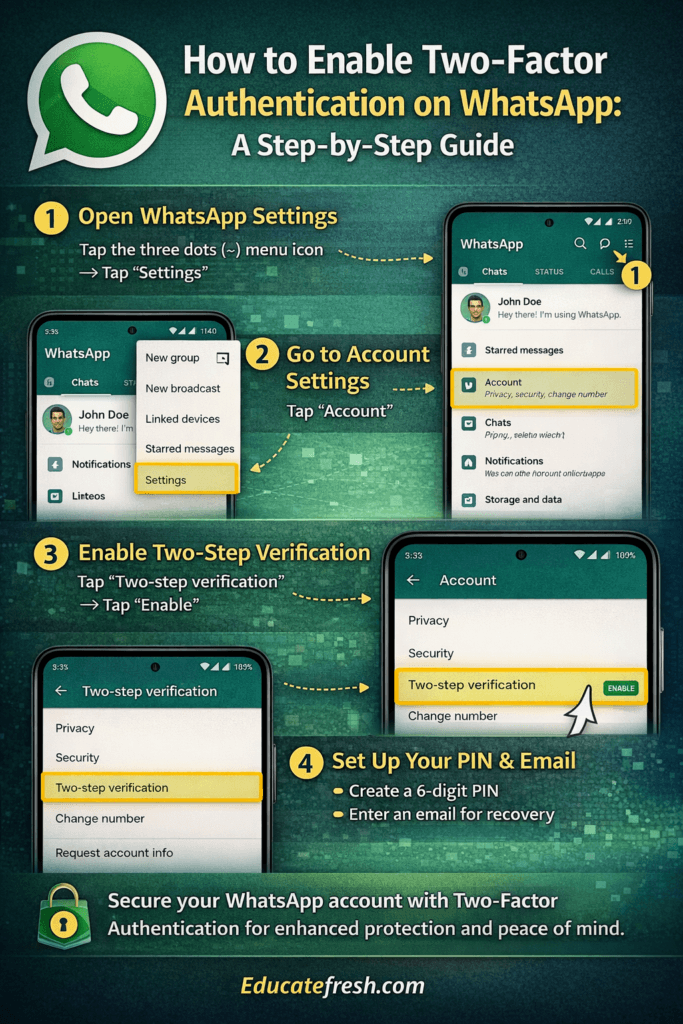
Step 1: Open WhatsApp Settings
- Open WhatsApp on your device.
- Tap the three dots in the top-right corner (Android) or Settings at the bottom (iPhone).
Step 2: Go to Account Settings
- Tap Account.
- Select Two-step verification.
Step 3: Enable Two-Step Verification
- Tap Enable.
- Enter a 6-digit PIN you will remember.
- Re-enter the PIN to confirm.
Step 4: Add an Email Address (Optional but Recommended)
- Enter an email address for account recovery.
- Re-enter the email to confirm.
Make sure the email is active and accessible. This will allow you to reset your PIN if you forget it.
Step 5: Complete Setup
- Tap Done.
- Two-step verification is now enabled.
Step 6: Using WhatsApp Safely with 2FA
- When registering WhatsApp on a new device, you will need the 6-digit PIN.
- Avoid sharing your PIN with anyone.
- Regularly update your PIN for better security.
Tips for Strong Security
- Use a unique PIN: Avoid simple combinations like 123456.
- Keep your email active: Enables PIN recovery if forgotten.
- Enable app lock: Protects WhatsApp with fingerprint or Face ID.
- Update WhatsApp regularly: Ensures the latest security patches.
Troubleshooting Two-Factor Authentication
Forgot your PIN?
- Use the email address you registered to reset your PIN.
- If no email is provided, WhatsApp will allow a reset after 7 days, but you will lose pending messages.
Not receiving verification codes?
- Check network connection and SMS settings.
- Contact your mobile carrier if necessary.
Frequently Asked Questions (FAQs)
- Q1: Can someone bypass 2FA on WhatsApp?
No, the 6-digit PIN cannot be bypassed. Only resetting via your recovery email or waiting 7 days is possible. - Q2: Is 2FA mandatory on WhatsApp?
No, but it is highly recommended to prevent unauthorized access. - Q3: What happens if I forget my 2FA PIN?
You can reset it via your email or wait 7 days to re-register your number, but messages pending during this period may be lost. - Q4: Can I change my 2FA PIN?
Yes, go to Settings → Account → Two-step verification → Change PIN.
Conclusion
Enabling Two-Factor Authentication on WhatsApp is a simple yet powerful way to protect your account from unauthorized access.
By setting a strong PIN and registering a recovery email, you add an extra layer of security that keeps your chats, media, and personal information safe. Combine 2FA with regular backups, app lock, and good password practices to ensure complete account protection.
If this How to Enable Two-Factor Authentication WhatsApp Guide was helpful, kindly share it on your social media accounts so that others can learn from it and keep their WhatsApp safe.
My account is hacked plz recover my account pl
READ THIS to get it settled
https://educatefresh.com/how-to-recover-hacked-whatsapp-account-step-by-step-guide/