
How to Create an Indian Facebook Avatar Quickly – Social media has evolved far beyond simple text posts and profile photos. Today, platforms like Facebook offer interactive features that allow users to express themselves creatively. One such feature is the Facebook Avatar, which lets users create a cartoon version of themselves that can be used in comments, Messenger chats, and even as profile pictures.
Over the past few years, Facebook Avatars have become extremely popular worldwide, especially in countries like India, where millions of users enjoy customizing digital identities.
Many users search online for how to create an Indian Facebook Avatar, particularly when the feature does not immediately appear in their app. Sometimes it is hidden due to regional rollouts, outdated apps, or device settings.
When the feature is available, Indian Facebook users can easily design an avatar that resembles their real appearance. This includes selecting skin tone, hairstyle, facial features, outfits, and accessories.
The best part is that your avatar can also be exported to other social media platforms such as Instagram, Snapchat, and Twitter, allowing you to maintain a consistent digital identity across multiple apps.
In this complete step-by-step guide, you will learn:
How to create an Indian Facebook Avatar
Where to find the avatar option inside the Facebook app
How to customize your avatar to look realistic
How to fix the problem if the avatar feature does not show
Tips to make your avatar look more accurate
By the end of this guide, you will be able to create your Facebook Avatar in just a few minutes.
TRENDING: Best Quotes To Celebrate Facebook Friendship Day – Facebook Friendversary
What Is a Facebook Avatar?
A Facebook Avatar is a customizable digital character that represents you on Facebook and Messenger.
It works similarly to Bitmoji, but it is built directly into the Facebook ecosystem.
Instead of using your real photo every time, you can interact with friends using animated avatar stickers.
These avatars can show different emotions, such as:
Laughing
Celebrating
Saying thank you
Showing love
Reacting to posts
The feature was introduced by Meta to make online communication more fun and expressive.
Benefits of Using Facebook Avatar
There are many reasons why Facebook avatars have become popular among users worldwide.
1. Express Yourself Without Posting Real Photos
Some users prefer not to upload personal pictures online. An avatar allows you to express yourself without revealing your real image.
2. Fun and Creative Communication
Avatar stickers make conversations more entertaining. Instead of typing long replies, you can respond using animated reactions.
3. Personalization
Facebook allows you to customize:
Skin tone
Facial structure
Hairstyles
Clothing
Accessories
This makes the avatar look very similar to you.
4. Works Across Facebook and Messenger
Once your avatar is created, you can use it in:
Facebook comments
Facebook posts
Messenger chats
Stories
Is Facebook Avatar Available in India?
Yes, Facebook Avatar is officially available in India.
However, some users may not see the feature immediately because Meta releases features gradually across different regions and devices.
Several factors may affect availability, including:
Facebook app version
Device compatibility
Language settings
Account rollout timing
If the feature does not appear in your app, do not worry. Later in this guide, you will learn how to fix this issue.
Requirements to Create an Indian Facebook Avatar
Before creating your avatar, make sure you have the following:
Basic Requirements
A Facebook account
Android smartphone or iPhone
The latest version of the Facebook app
Stable internet connection
Although Facebook can be accessed through desktop browsers, avatar creation works best on the mobile app.
Step-by-Step Guide to Create an Indian Facebook Avatar
Follow these steps carefully to create your avatar.
Step 1: Update Your Facebook App
Before creating an avatar, ensure your Facebook app is updated.
- Visit your Google Play Store (Android) or Apple App Store (iPhone)
- Search for Facebook and tap Update if available.
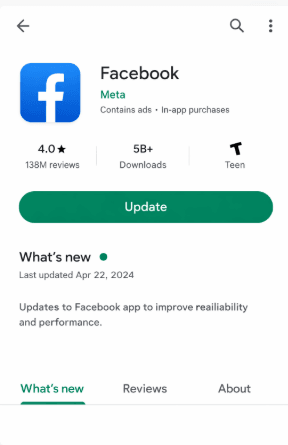
Outdated apps often hide new features like avatars.
Step 2: Open Facebook and Access the Menu
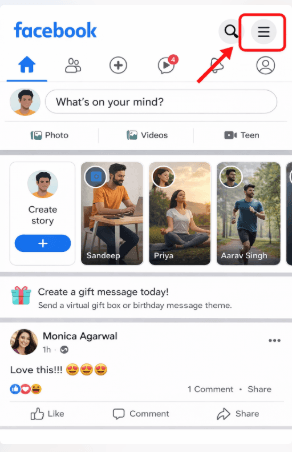
- Open the Facebook app on your smartphone.
Then, tap the three horizontal lines (Menu icon).On Android, it appears in the top right corner. While on iPhone, it appears in the bottom right corner.
Step 3: Find the Avatar Option
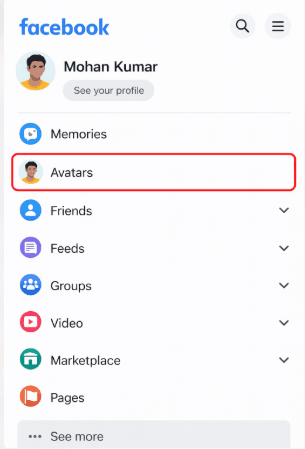
Scroll through the menu until you find Avatars.
If you see the option:
Tap Avatars
Select Create Avatar
The avatar editor will open.
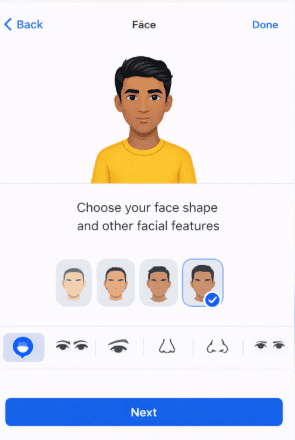
Step 4: Choose Skin Tone and Face Shape
Once Avatar creation starts:
- Select a skin tone that matches the Indian complexion options
- Choose face shape, jawline, and chin style
- Adjust facial structure carefully
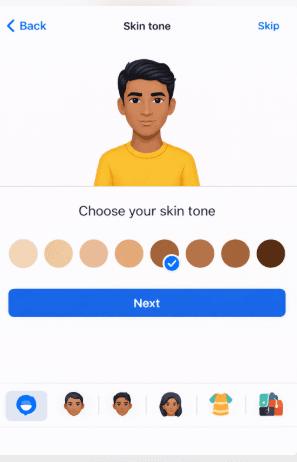
Facebook offers a wide range of tones suitable for Indian users.
Step 5: Select Face Shape
After selecting skin tone, customize your facial structure.
You can adjust:
Face shape
Jawline
Chin
Head size
Try to match your real facial structure for a more realistic avatar.
Step 6: Customize Facial Features
Next, customize your facial features. You can adjust:
Eyes
Eyebrows
Nose
Lips
Facial hair
Men can also choose different beard and moustache styles.
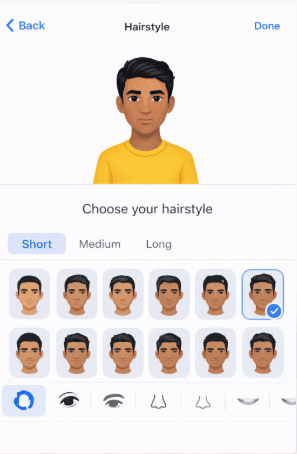
Step 7: Choose Hairstyle and Hair Color
Facebook offers many hairstyles that match both traditional and modern Indian styles.
Popular options include:
Short hairstyles
Long hair
Curly styles
Straight hair
Hair colors include:
Black
Brown
Blonde
Custom shades
Step 8: Choose Outfits and Accessories
Now customize your avatar’s clothing.
You can select:
Casual outfits
Glasses
Earrings
Hats
Accessories
Meta regularly updates clothing options, so you may see new styles occasionally.
Step 9: Save Your Avatar
- Once you finish customizing your avatar, tap Done.
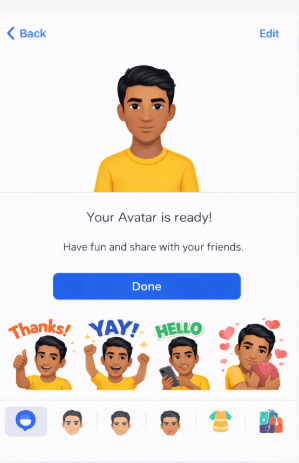
Facebook will automatically generate a set of avatar stickers that you can use across Facebook and Messenger.
How To Use Your Indian Facebook Avatar
After creation, you can use your avatar in multiple ways.
For Comments
- Open any Facebook post
- Tap the comment box and tap the sticker icon
- Select Avatar stickers
Use Avatar in Messenger
- Open Messenger
- Start a chat
- Tap the sticker icon
- Choose Avatar stickers
Use Avatar on Profile Picture
You can also use Avatar as a profile photo
Open your Facebook profile
Tap Edit Profile Picture
Choose Avatar
Facebook Avatar Not Showing in India – How to Fix it
If you cannot find the Avatar option, try these proven fixes.
Fix 1: Update Facebook App Again
Ensure your Facebook app is fully updated. Meta often releases new features only in updated versions.
Fix 2: Clear Facebook App Cache (Android)
- Go to Settings
- Tap Apps
- Select Facebook
- Tap Storage
- Click Clear Cache
Then restart the app and check again.
Fix 3: Change Language to English (India)
- Go to Facebook Settings
- Tap Language
- Select English (India) or English (US)
- Restart the app
This often triggers hidden features.
Fix 4: Create Avatar via Messenger
Some users see the Avatar feature in Messenger first.
- Open Messenger
- Tap your profile picture
- Look for Avatars
- Create an avatar there
It will sync with Facebook automatically.
Fix 5: Log Out and Log In
- Log out of Facebook
- Close the app
- Log back in
- Check the menu again
Advanced Tips to Make Your Avatar Look Better
Here are some pro tips to improve your avatar.
Use Natural Skin Tone
Select the closest tone to your real complexion.
Match Hairstyle Carefully
Hair is one of the most noticeable features.
Add Accessories
Glasses and earrings can improve realism.
Use Beard Options
For men, beard styles can make avatars look much more accurate.
My Experience Creating a Facebook Avatar
The first time I created a Facebook avatar, I was surprised at how detailed the customization options were. It took me about 10 minutes to complete my avatar, and the result looked surprisingly close to my real appearance.
One interesting thing I noticed is that Facebook automatically creates dozens of expressive avatar stickers once the avatar is saved.
These stickers make conversations more lively because you can react instantly without typing long replies. Since then, I often use avatar stickers in Messenger chats with friends.
Common Mistakes to Avoid
When creating your Facebook avatar, avoid these mistakes.
Choosing the Wrong Skin Tone
Always select the tone closest to your real complexion.
Rushing Customization
Take your time to adjust facial features carefully.
Ignoring Hairstyle Details
Hair plays a major role in avatar similarity.
Privacy and Safety Tips
Although avatars are safe to use, keep these tips in mind.
Avoid sharing personal information publicly
Use privacy settings on your profile
Review Facebook security settings regularly
Frequently Asked Questions (FAQs)
Is Facebook Avatar Free?
Yes. Creating a Facebook Avatar is completely free. Facebook does not charge users to create avatars, customize them, or use avatar stickers in comments and Messenger chats.
Can I Edit My Avatar Later?
Yes, you can edit your avatar anytime.
To edit your Facebook Avatar:
Open the Facebook app
Tap the Menu (three lines)
Tap Avatars
Select Edit Avatar
You can then change hairstyles, outfits, facial features, and accessories.
Can I Delete My Avatar?
Yes. Facebook allows users to delete their avatars if they no longer want to use them.
To delete your avatar:
Open Facebook Menu
Tap Avatars
Tap Edit
Select Delete Avatar
You can create a new one again anytime.
Why can’t I find the Avatar option on Facebook?
If the Avatar feature does not appear on your account, it may be due to several reasons:
Your Facebook app is outdated
The feature has not rolled out to your account yet
Your language settings are not supported
Your device needs an update
Try updating the app or logging out and logging back in.
Can I create a Facebook Avatar on a computer?
Currently, Facebook Avatar creation works best on mobile devices.
While you may see avatars on desktop browsers, the full customization tools are designed primarily for the Facebook mobile app.
How long does it take to create a Facebook Avatar?
Creating a Facebook Avatar usually takes 5 to 10 minutes.
The process may take slightly longer if you spend more time customizing facial features, hairstyles, and clothing options to make the avatar look realistic.
Can I create multiple Facebook Avatars?
No. Facebook currently allows only one avatar per account. However, you can edit or recreate your avatar anytime.
Are Facebook Avatars safe to use?
Yes. Facebook Avatars are safe because they do not reveal personal information or real photos. They simply represent you as a cartoon character, which adds an extra layer of privacy when interacting online.
Conclusion
Looking for how to create an Indian Facebook Avatar? Then the steps you just went through should be taken, and you’ll be very much good to go.
Creating an Indian Facebook Avatar is simple once you know where to look and how to fix common issues. With the right app version and settings, you can create your avatar in just a few minutes and start using it across Facebook and Messenger.
If you found this article helpful, kindly share, like, and comment on it.
Pingback: How To Sign Up Facebook Avatar From Any Country – EducateFresh